Losing access to your Bitcoin storage due to hardware failure is one of the most stressful scenarios any crypto holder can face. Samourai Wallet, renowned for its battle-tested privacy features like Whirlpool and Stonewall, generates robust encrypted backup files (typically samourai.txt) alongside traditional BIP39 seed phrases.
If you stored your Samourai Wallet backup file or seed archive on a computer hard drive that is now corrupted, clicking, unmountable, or suffering from bad sectors, do not panic. With disciplined data recovery protocols and cryptographic knowledge, your funds can still be recovered. Follow this comprehensive, step-by-step engineering guide to retrieve your data safely.
1. Immediate Triage: Assess Hard Drive Failure Type
Before running any recovery software, you must determine whether the drive failure is logical or physical. Applying software scans to a physically failing drive will permanently destroy the platters and eradicate your backup.
Logical Failure (Safe for DIY recovery)
- The drive spins up smoothly without unusual noises.
- The operating system prompts you to format the disk, reports "RAW file system," or crashes during specific file access.
- Partition tables are missing, or the filesystem is corrupted (e.g., corrupted NTFS, FAT32, or ext4).
Physical / Mechanical Failure (Stop immediately)
- The drive produces rhythmic clicking, grinding, scraping, or buzzing sounds.
- The drive fails to spin up or repeatedly spins down and cycles.
- There is a burnt PCB smell or physical drop damage.
Critical Warning: If physical failure is suspected, power down the computer immediately. Do not attempt software recovery. Send the drive to a professional cleanroom data recovery lab and inform them that you need to recover a specific text/JSON encrypted payload.
2. Create a Bit-by-Bit Sector Image (Never Work on the Live Drive)
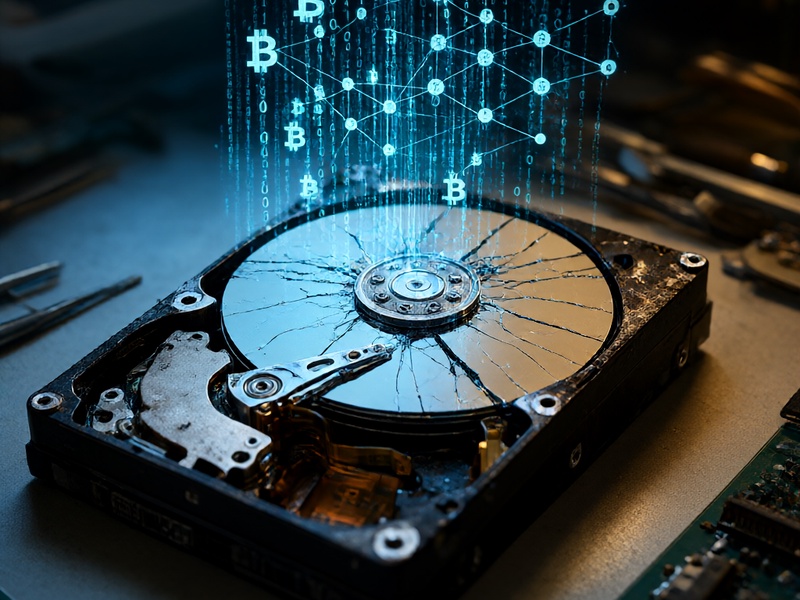
Never run raw file extraction directly on an unstable or corrupted storage medium. Always create an exact bitstream forensic image (.img or .raw) on an external, healthy storage drive.
Using ddrescue on Linux
GNU ddrescue is the industry standard for cloning dying storage drives because it intelligently skips bad sectors and returns to scrape them later:
# Identify drive letters using lsblk
sudo ddrescue -d -r3 /dev/sdX /path/to/backup_disk/corrupted_drive.img /path/to/backup_disk/recovery.map
Once the clone image is created, unmount and disconnect the failing drive. Perform all subsequent carving and file scanning on the disk image.
3. Carving and Extracting the Samourai Backup Payload
Samourai Wallet backup files are typically plain-text files (often named samourai.txt) containing an encrypted payload or an OpenSSL/AES ciphertext string beginning with specific headers.
Method A: Targeted File System Carving with PhotoRec / TestDisk
- Launch TestDisk on the disk image to see if the lost partition table or MFT/FAT metadata can be automatically rebuilt.
- If file tables are destroyed, launch PhotoRec (or Scalpel):
- Target
.txt,.json, or raw unformatted data blocks. - Extract all textual files to a secure directory.
- Target

Method B: Raw Grep for Samourai Payload Signatures
If the backup file name is lost, you can parse the raw disk image directly using regex pattern matching. Samourai backup files contain encrypted JSON blobs or base64 strings.
Run the following command in a Linux terminal against the image:
strings corrupted_drive.img | grep -E -C 3 '"version"|"payload"|"iterations"' > potential_backups.txt
Inspect the output file. A typical Samourai encrypted backup will look like a structured JSON string containing encrypted data fields, salt, and IV parameters.
4. Decrypting the Extracted Samourai Wallet Backup
Once you have located the text backup file or extracted the encrypted payload, you will need:
- The Backup File (
samourai.txtor raw payload string). - The Passphrase / Password you designated when creating the Samourai backup.
Option A: Using the Mobile Samourai Wallet Application
- Install Samourai Wallet on an Android device (or a hardened Android emulator).
- Select Restore an existing wallet.
- Choose Restore from backup file and point the application to the recovered
samourai.txt. - Input the backup password/passphrase when prompted. The wallet will reconstruct your BIP39 mnemonic, derivation paths, and PayNym (BIP47) relationships.
Option B: Offline Decryption via Open Source Python Scripts
If you prefer an air-gapped machine without an Android environment, you can use Samourai's open-source backup decryptor scripts (available via GitHub repositories maintained by the Bitcoin privacy community). These tools decrypt the AES payload using your password and reveal the original 12-word BIP39 seed phrase and BIP39 passphrase.
5. Rebuilding Your Wallet in Sparrow Wallet (Desktop Alternative)
If you do not want to use a mobile device, you can restore your funds into Sparrow Wallet, an advanced open-source desktop Bitcoin wallet that fully supports Samourai's derivation paths and features.
- Download and verify the signature of Sparrow Wallet on a clean machine.
- Navigate to File > New Wallet.
- Under Script Type, select Native Segwit (P2WPKH) (or Nested Segwit depending on when your Samourai Wallet was initialized).
- Select New or Imported Software Wallet > Mnemonic (BIP39).
- Select 12 Words, enter your recovered words, and crucially, enter your BIP39 Passphrase in the Passphrase field.
- Click Import, verify the derivation path (
m/84'/0'/0'for Bech32 Native Segwit), and let Sparrow scan the blockchain for your balance.
Essential Security Safeguards
- Beware of Scammers: Never share your extracted files, hexadecimal strings, or 12-word seeds with any online "crypto recovery specialist" or remote-desktop assistant.
- Work in an Air-Gapped Environment: For maximum protection, execute image decryption and mnemonic extraction on a computer disconnected from local networks and the internet.
- Implement the 3-2-1 Backup Strategy: Moving forward, store your seed phrases stamped into 304 or 316 stainless steel plates (to withstand fire and flooding), and never rely on an unencrypted computer drive as your sole crypto backup repository.
Conclusion
A corrupted hard drive does not mean your Bitcoin is gone forever. By halting drive activity immediately, generating an exact forensic image via ddrescue, carving out the encrypted Samourai payload, and safely decrypting it using proper derivation paths, you can successfully recover your assets while maintaining absolute sovereignty over your private keys.