Recovering xPortal assets on a clean system is mostly about restoring control of a non-custodial wallet, not asking a company to return funds. xPortal does not hold your private keys; the MultiversX blockchain holds your EGLD, ESDT tokens, NFTs, and other supported assets. A clean device reduces the risk of malware, keyloggers, and clipboard stealers while you enter your Secret Phrase.
Why a Clean System Matters
When you restore a crypto wallet, you expose the most sensitive recovery material you own. If the system is already infected, the Secret Phrase can be captured before the wallet finishes syncing. A clean system means a freshly installed operating system, a new user profile, or a factory-reset phone with no unknown apps. It also means avoiding browser extensions, cracked software, remote-access tools, and clipboard managers until recovery is complete.
Use a trusted internet connection and keep the device offline for as long as possible. If you can, perform the restore on a device that has never been used for risky downloads or unofficial crypto tools.
What You Need Before You Start
- The official xPortal app or the official xPortal web interface.
- Your xPortal Secret Phrase, usually 24 words, written in the correct order.
- Your old public wallet address, if you have it, so you can verify the restored address.
- Guardian or Social Recovery details, if you enabled them.
- A quiet, private space with no cameras or screen-sharing software.
If you do not have the Secret Phrase and you never enabled a recovery method such as Guardians, restoring the same wallet may be impossible. In that case, check whether you still have access on an old device, because xPortal is non-custodial and support cannot reset your phrase.
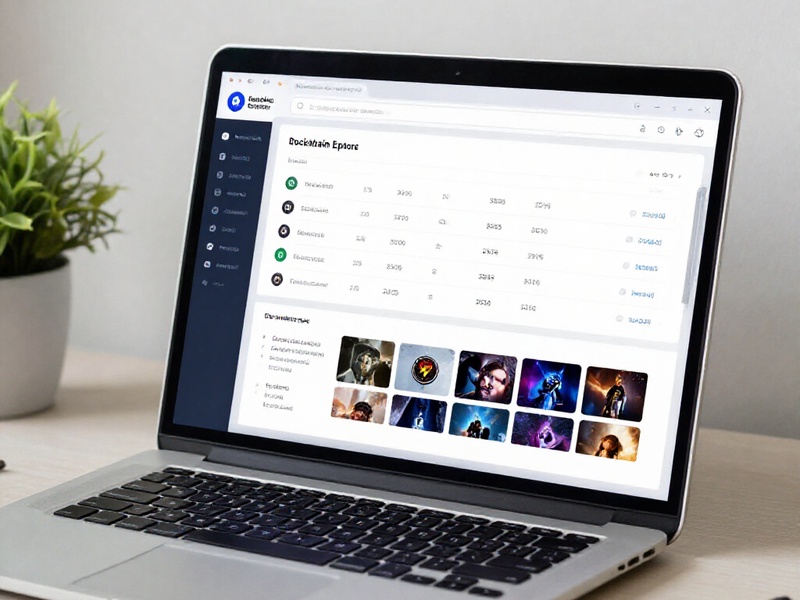
Step 1: Install xPortal from an Official Source
Download only from the official Apple App Store, Google Play Store, or the official xPortal website. Avoid search ads, social media links, and direct messages. Before installing, confirm the developer name, app name, reviews, and domain. On desktop, type the official URL manually instead of clicking a link.
A clean system is only clean if the software you install is legitimate. A fake xPortal app can look convincing and still steal your Secret Phrase.
Step 2: Restore the Wallet
- Open the official xPortal app or web interface.
- Choose the option to restore or import an existing wallet.
- Select Secret Phrase as the recovery method.
- Enter each word in the exact order, with correct spelling.
- Set a strong passcode and enable biometrics if available.
- Wait for the wallet to sync with the MultiversX network.
Do not take screenshots, do not copy the phrase, and do not paste it into a clipboard. Type it manually in a private room. If the app asks for a Guardian approval, complete that step using your approved guardian method.

Step 3: Verify Your Address and Assets
After restoration, compare the new wallet address with your old public address. If you used the same Secret Phrase, the MultiversX address should match. Next, open the official MultiversX Explorer and search for your address. Check the EGLD balance, ESDT tokens, NFTs, staking positions, and any other on-chain activity.
If you used xPortal across multiple supported networks, switch to the correct network in the app. Assets on other chains may need the corresponding network selected before they appear.
Step 4: Troubleshoot Missing Assets
Missing assets usually do not mean the assets are gone. Common causes include:
- The wrong Secret Phrase or an incorrect word order.
- The wrong network selected in xPortal.
- Tokens hidden from the default view and needing to be added manually.
- Staking, farming, or NFT positions that need extra time to load.
- A Guardian-enabled wallet waiting for approval.
- Assets held on a different address or in a different wallet.
Use the official blockchain explorer as the source of truth. If the explorer shows the assets at your address, the blockchain still recognizes them. You may need to refresh the app, add the token identifier, or reconnect to the correct network.
Step 5: Secure the Recovered Wallet
Once your assets are visible, improve security before using the wallet normally. If you suspect the old device or Secret Phrase was compromised, create a new wallet with a new Secret Phrase and move your assets there. Back up the new phrase offline on paper or metal, never in cloud storage, email, photos, or chat apps.
Enable available security features such as Guardians, two-factor authentication, and hardware wallet support where appropriate. Keep the clean system clean by avoiding unknown browser extensions and suspicious downloads.
Common Mistakes to Avoid
- Downloading xPortal from an unofficial source.
- Entering a Secret Phrase into a website that is not the official xPortal interface.
- Using a clipboard to move recovery words.
- Ignoring Guardian or Social Recovery prompts.
- Assuming missing tokens are lost before checking the explorer.
- Sharing the Secret Phrase with anyone who offers help.
Final Thoughts
Recovering xPortal assets on a clean system is possible when you have the correct Secret Phrase and use official tools. The assets live on the MultiversX blockchain, while xPortal is the interface that lets you control them. Treat recovery as a security-critical operation: use a clean device, verify every source, check the explorer, and move funds to a new wallet if you have any doubt about exposure.