Restoring assets from an old Qtum Core backup is possible, but it requires patience and a careful process. Whether your wallet file is years old or saved before a major upgrade, the safest approach is to treat the backup as a fragile artifact: copy it first, install a compatible version, restore it into the correct data directory, then sync or rescan the blockchain until your balances reappear.
Why Qtum Core old backups still matter
Qtum Core stores your private keys in wallet files, most commonly wallet.dat. The blockchain itself is public, but your ability to spend coins depends on those keys. An old backup can still recover assets as long as:
- The wallet file is not encrypted with a forgotten passphrase.
- The Qtum chain contains the transactions from that wallet.
- You use a version or command that can read the wallet format.
- You allow enough time for chain verification and address scanning.
What to prepare before starting
Essential items
- Old backup files:
wallet.dat,.bakfiles, or the whole Qtum data directory. - Wallet passphrase, if you encrypted the wallet.
- A clean computer or a separate folder for testing.
- Disk space for the Qtum blockchain.
- Official Qtum binaries from trusted sources, with checksums when available.
Safety rule
Never edit the original backup. Create a read-only copy and work from that copy. If the recovery fails, you still have the original file.
Step 1: Make multiple safety copies
- Copy every backup file into a new folder named something like
Qtum_Backup_Original. - Add a second copy to an offline drive or encrypted storage.
- Calculate checksums for each file using SHA256 or another tool.
- If you have several
wallet.datfiles, label them by date or known wallet name.
A checksum is useful because you can compare file integrity after copying and before loading it into Qtum Core.
Step 2: Identify the right Qtum Core version
Old wallet files may be compatible with newer versions, but compatibility is not guaranteed. Start with the latest official release, because it provides the best network security and support. If the newest version cannot open the wallet, move backward to the last version you used, or a version from the same era as the backup.
For each download:
- Verify the file name, size, and checksum or signature.
- Avoid installing anything from random cloud links.
- Keep the old data directory unchanged while testing.
Step 3: Locate the Qtum Core data directory
Qtum Core usually creates a data directory on first launch. Typical locations are:
- Windows: the
Qtumfolder inside your roaming AppData location. - macOS: the
Qtumfolder in Application Support. - Linux: a hidden
.qtumfolder in your home directory.
If you are unsure, install Qtum Core, start it, then close it before placing any files. That creates a fresh directory for testing.
Step 4: Restore the wallet without overwriting
The exact folder depends on the Qtum Core version you run.
If you use the default wallet path
- Close Qtum Core completely.
- Copy
wallet.datfrom your safety copy into the data directory. - If a file already exists, rename it to
wallet_old_test.datbefore pasting the restored file. - Start Qtum Core and allow it to load the wallet.
If you use newer multi-wallet support
- Place the wallet file inside the
walletssubfolder in the data directory. - Use the GUI wallet loader or a command-line option to specify the wallet file.
- Avoid using
createwalletwith the same name if you intend to load an existing file.
Key point: if the software asks to create a new wallet, cancel and check the file location and file name. Creating a fresh wallet may leave your old keys unused.
Step 5: Start the initial sync
After the wallet loads, Qtum Core will connect to peers and validate the chain. If your backup is old, the node may need to download several gigabytes of data. This is normal. Do not interrupt the process unless the software clearly freezes.
You can watch progress through:
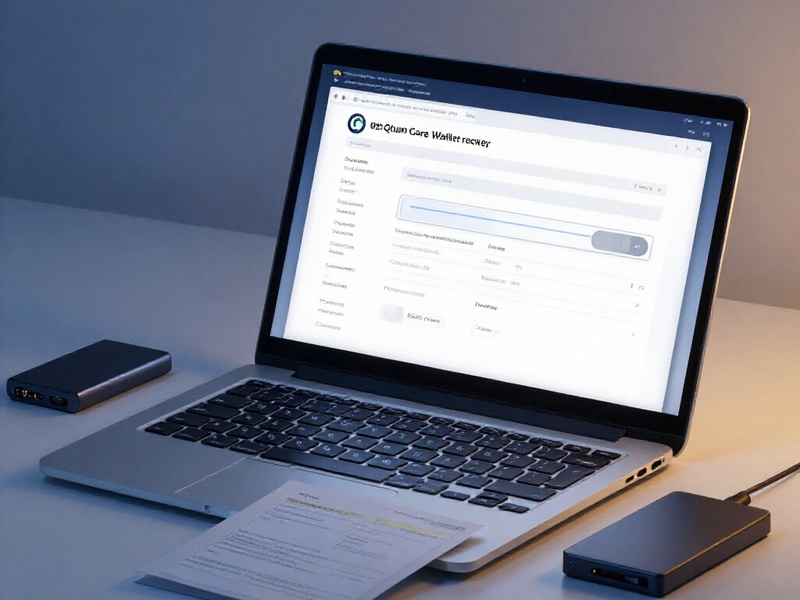
- the status bar or console,
- block height and network peers,
- debug or log files, depending on the version.
Step 6: Check whether your addresses and balance appear
Once the chain is mostly synced, review:
- receiving addresses,
- address labels,
- transaction history,
- available balance and pending balance,
- staking status if you are running a staking wallet.
If you know old addresses, test one by searching them on a public block explorer. This helps confirm that the wallet is scanning the correct chain.
If the balance is still missing
Try these safe checks:
- Confirm the wallet file name is the one you copied.
- Ensure Qtum Core is not using a different data directory.
- Rescan the wallet from the old block height if your version supports it.
- Unlock the wallet if it is encrypted and staking requires access.
- Wait until block height reaches the expected height; balances may update only after scanning.
Step 7: What to do when the wallet file will not open
A failed wallet load has several causes.
Wrong version
If a newer version rejects the file, test a previous stable release that matches the original backup era. Keep the original file safe each time.
Corrupted file
Do not delete or reinitialize the data directory. If your Qtum Core version supports a wallet salvage command, use it on a copy of the file, never the original. The command line is for advanced users and should be tested only when necessary.
Forgotten passphrase

There is no recovery without the passphrase. Check old notebooks, password managers, browser autofill, or written hints. Do not guess repeatedly if the software has lockout or delays.
Watch-only wallet
Some backups may contain addresses and transaction data but not private keys. In that case, you can monitor funds but cannot spend them unless you have another backup with keys.
Step 8: Protect the recovered assets
Once the balance is visible:
- Make a new encrypted backup of the current wallet.
- Store it in at least two secure locations.
- Test the new backup on a clean machine before relying on it.
- If the old wallet is years old, consider moving funds to a fresh address, especially if the software environment feels compromised.
Common mistakes to avoid
- Using a modified binary from an unknown source.
- Replacing a working
wallet.datwith the backup copy before saving the current file. - Reinstalling Qtum Core in the same folder and deleting the data directory.
- Assuming the backup is corrupted when the chain is still syncing.
- Running two nodes from the same data directory at the same time.
- Ignoring a stale
wallet.bakor older copy when the mainwallet.datappears damaged.
A practical recovery checklist
Use this sequence from top to bottom:
- Copy original backup.
- Verify checksum.
- Install official Qtum Core.
- Locate data directory.
- Load old
wallet.datwithout overwriting. - Sync the blockchain.
- Rescan or reindex only when necessary.
- Confirm balance and addresses.
- Create a fresh encrypted backup.
Final thought
Recovering assets from an old Qtum Core backup is usually a data-directory and version problem, not a dead chain problem. With organized copies, a trusted installer, and patient synchronization, most users can restore visibility of their Qtum and safely secure it for the future.